User Guide – VoxList (EN)

A voice-first shopping list. Add items by voice or manually, fix recognition, edit, delete, and set the voice language.

Tip: Put the images in the same folder as index.html and this page.

1) What is VoxList

VoxList is a simple shopping list where you can add items:

  • by voice (microphone – fast dictation),
  • manually (keyboard – when it’s noisy or you need exact text),
  • and then edit, delete, and check off items.
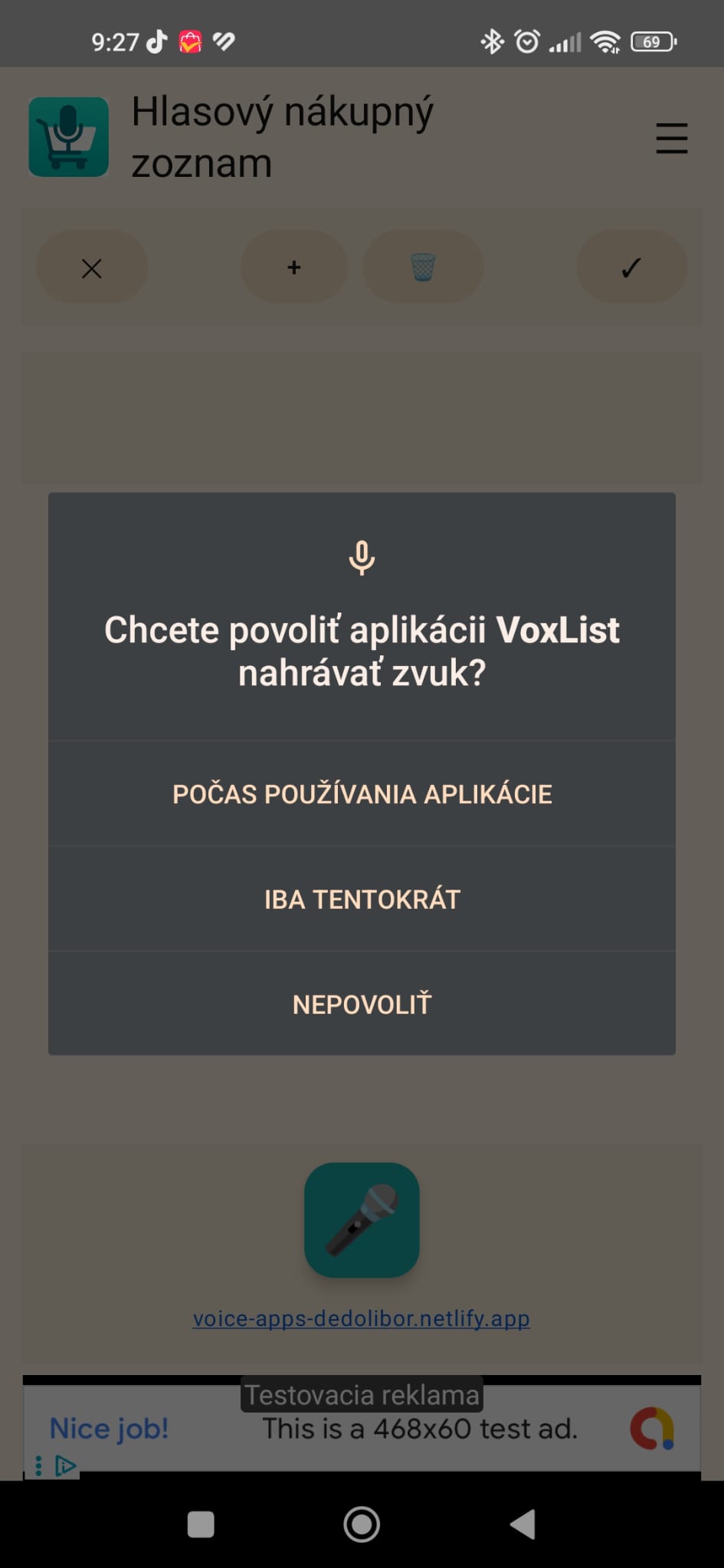
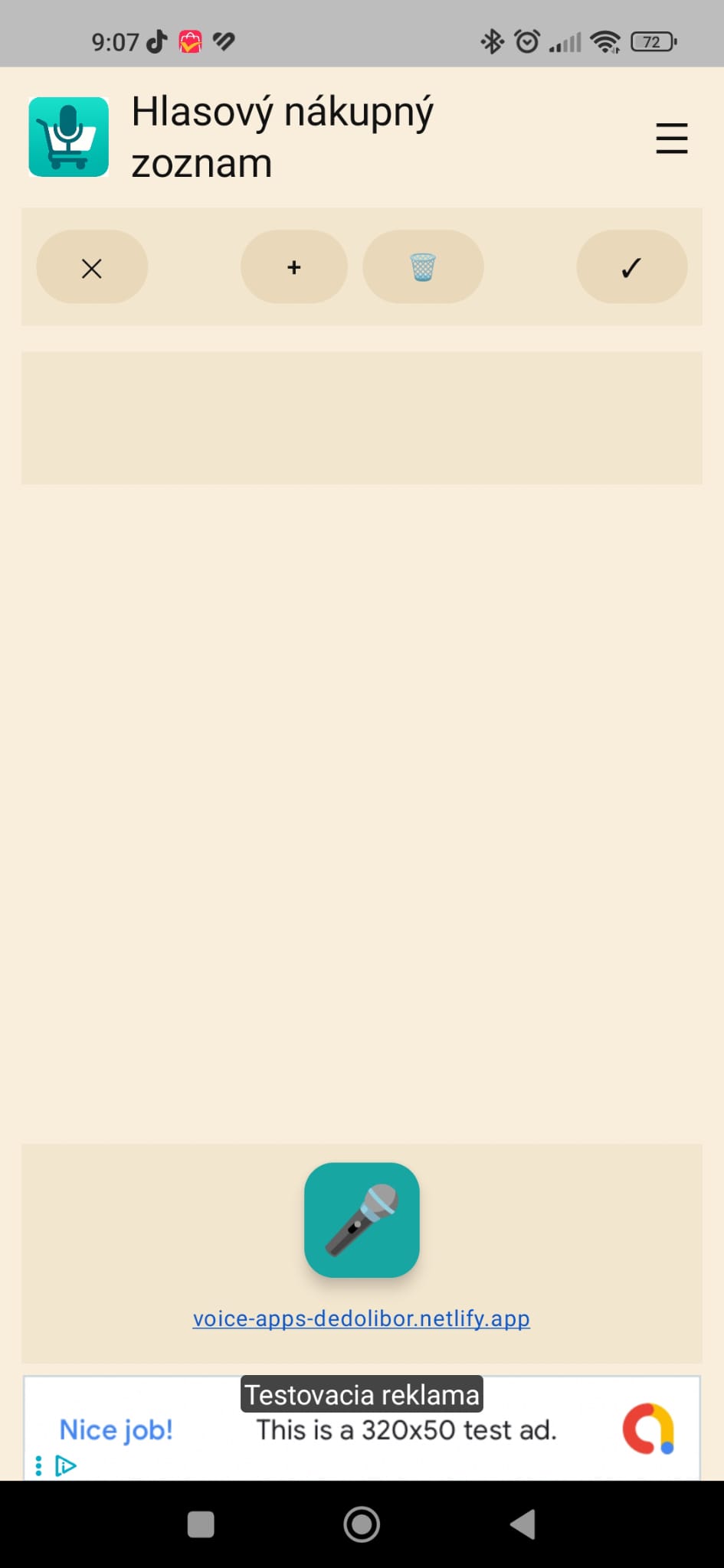
VoxList main screen
Put image here: hlavna-obrazovka.jpeg
Image 1: Main screen (top buttons + list + microphone)

2) Quick start (30 seconds)

  • 1) Tap the microphone (the first time, allow audio recording).
  • 2) Say an item, e.g. “butter 250 grams” or just “bread”.
  • 3) If the app shows multiple options, pick the correct one.
  • 4) Confirm adding the item (tap ✓).
Tip: Best results come from choosing the correct voice language in Settings (e.g., en-US, en-GB, sk-SK, cs-CZ).

3) Microphone permission

When you use the microphone for the first time, Android will ask for permission. Recommended option:

  • WHILE USING THE APP – so voice input works whenever VoxList is open.
Microphone permission dialog
Put image here: povolenie_mikrofon.jpeg
Image 3: Microphone permission (audio recording)
If you tapped “Don’t allow”, you can fix it in Android settings: Settings → Apps → VoxList → Permissions → Microphone → Allow.

4) Add an item by voice (REC)

The microphone is simple: tap to start and tap again to stop.

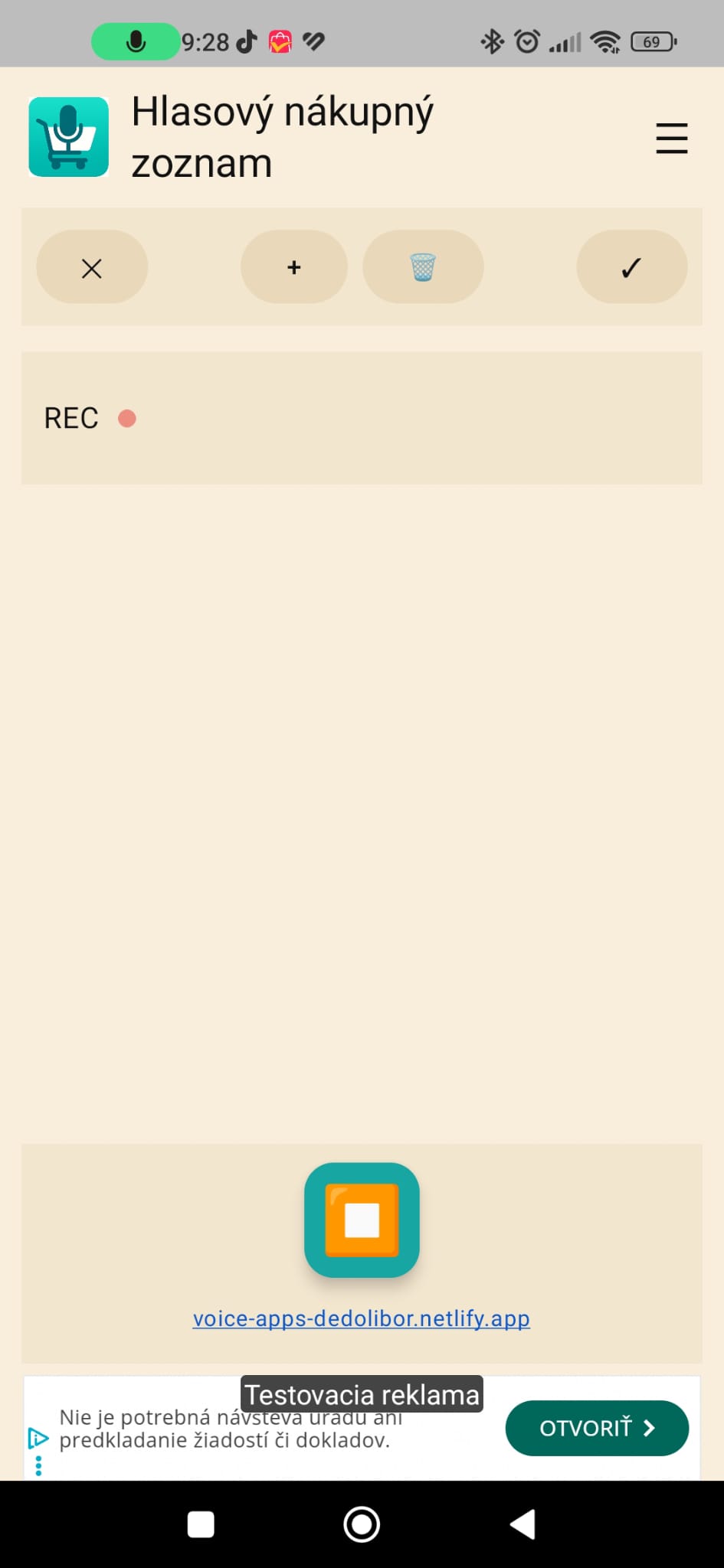
  • When recording is active, you’ll see REC and a red dot.
  • When you stop, the app processes what you said.
Recording state REC
Put image here: mikrofon.jpeg
Image 4: REC – recording is ON

If you don’t speak (or there’s noise)

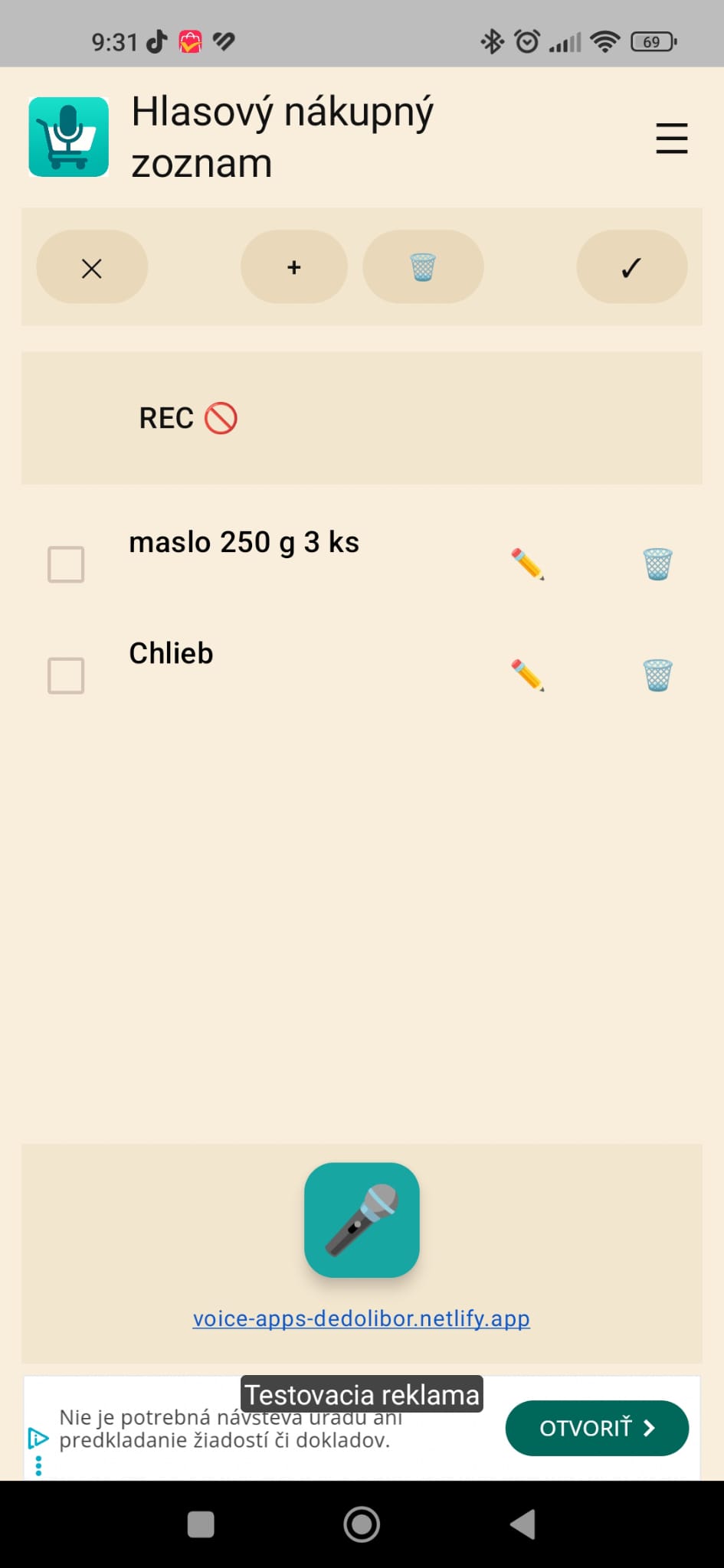
If nothing is recognized, you may see REC 🚫. Try speaking closer to the mic, or use manual input.

REC with no recognition
Put image here: bez-hovorenia.jpeg
Image 4B: When nothing is recognized (REC 🚫)

5) When the app offers multiple choices (fix recognition)

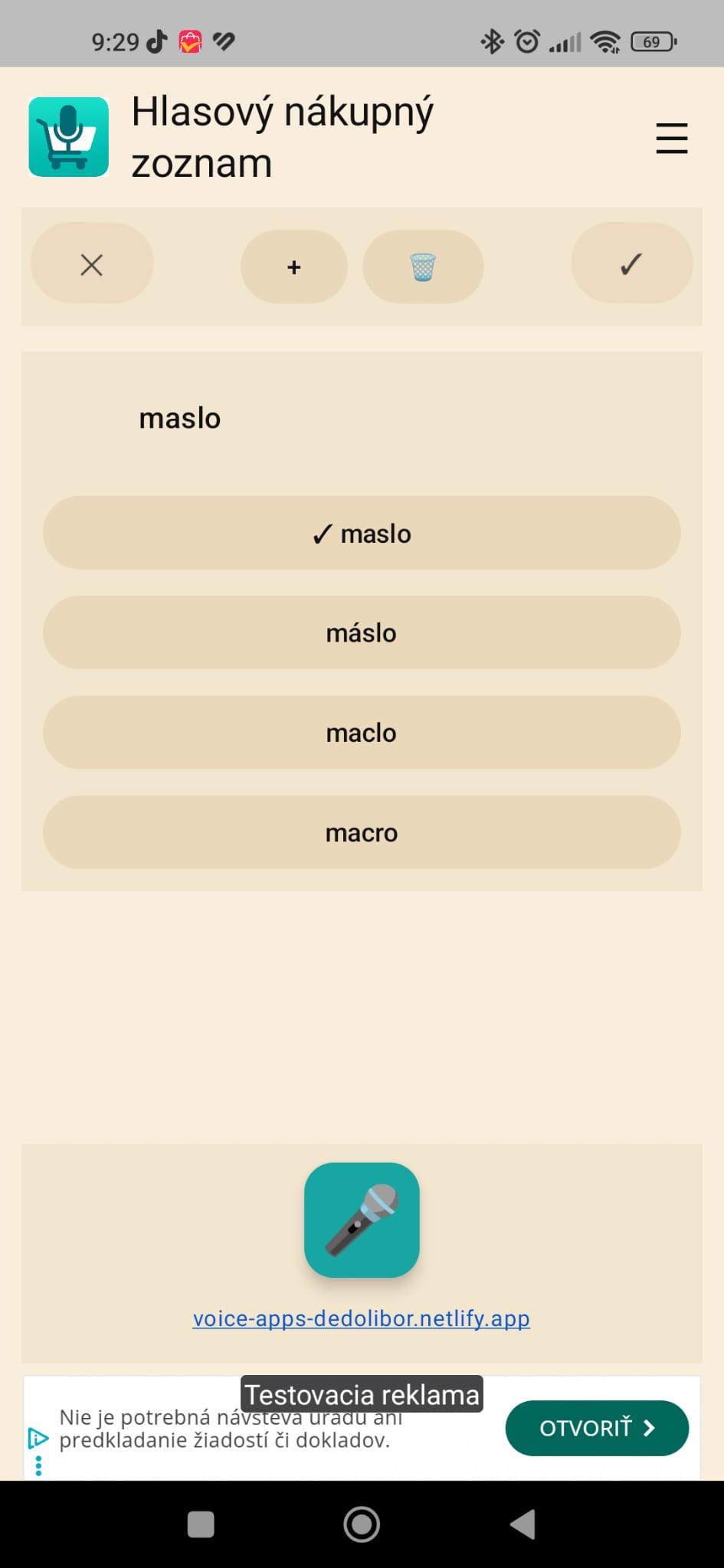
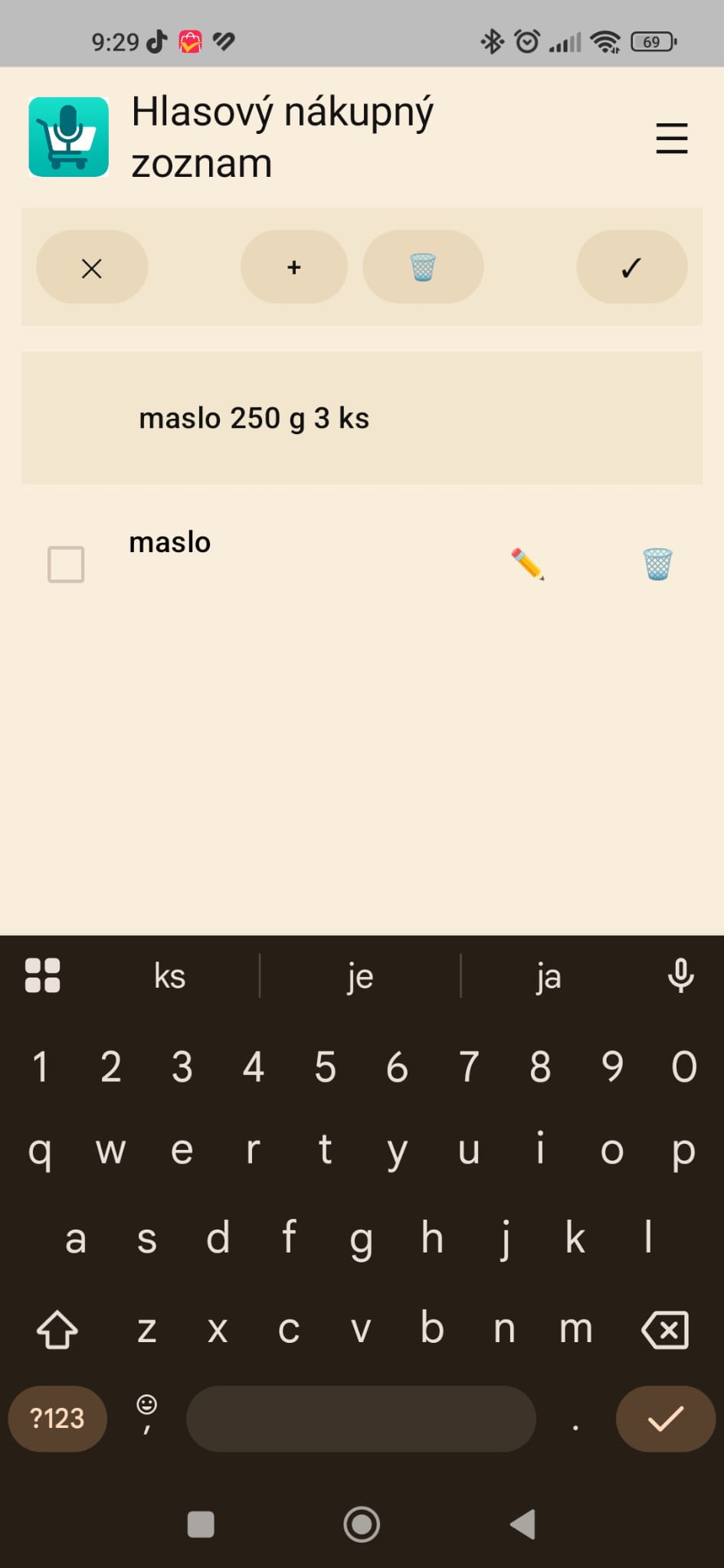
Speech recognition can show several candidates. Just tap the correct one.

  • Tap the correct option (the one you really meant).
  • Then confirm adding it (tap ✓).
Choosing the correct recognition option
Put image here: moznosti.jpeg
Image 5: Pick the correct candidate after dictation
Tip: If the app frequently mixes languages, set the correct voice language in Settings (section 9).

6) Add manually (+) and confirm (✓)

If you don’t want to use the microphone, type the item with the keyboard:

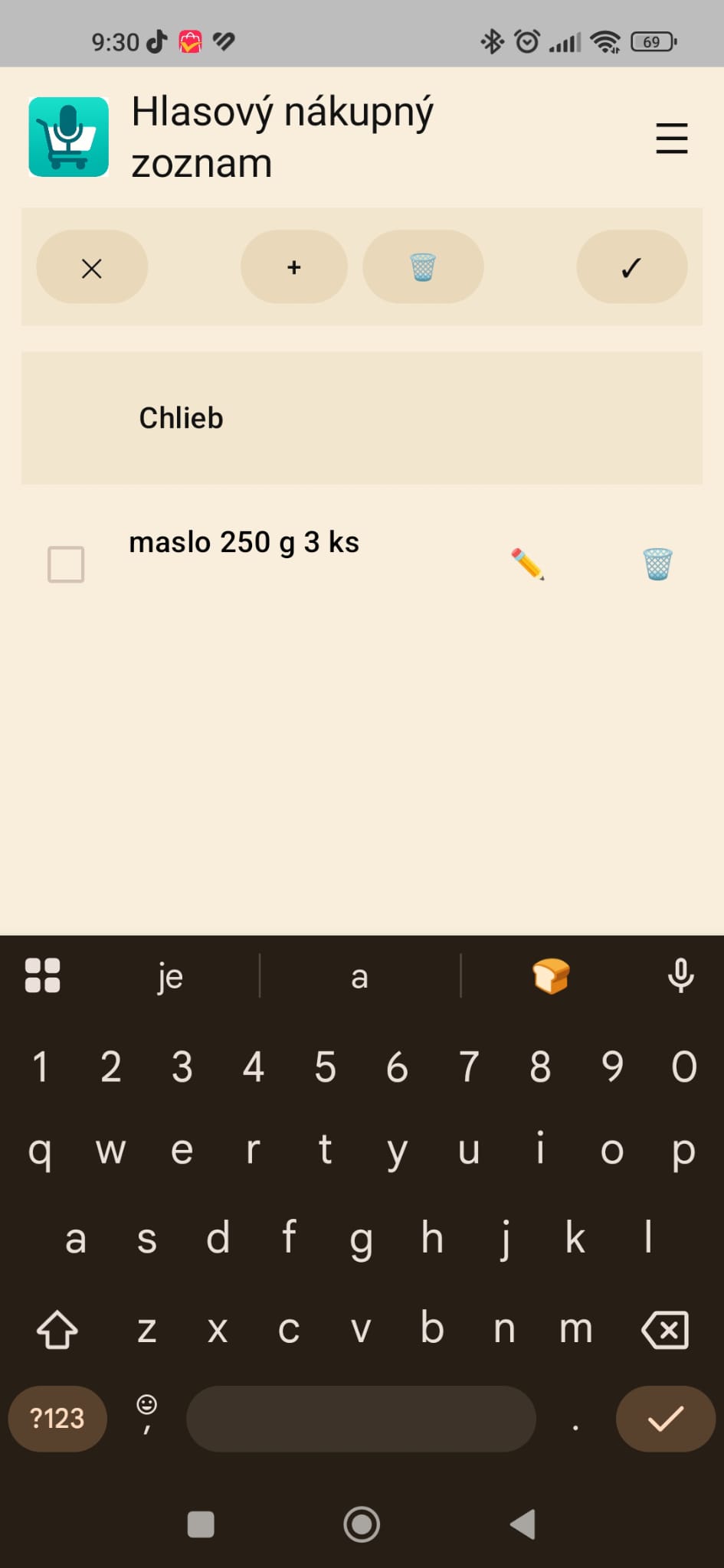
  • Tap + and type text into the input area (e.g., “Bread”).
  • Confirm adding the item with ✓.
Manual input using the plus button
Put image here: pridanie-plus.jpeg
Image 6: Manual input (keyboard)

What the top buttons do

  • X – clears the current input (or cancels the current draft).
  • + – manual add (type the item).
  • 🗑️ – delete (depending on version: the whole list or selected items).
  • ✓ – confirm (adds/saves the current input into the list).
If you want, I can replace the “depending on version” line with the exact behavior once your delete button is final (delete all vs delete checked).

7) Edit (✏️) and delete (🗑️) items

Each item in the list has its own actions:

  • ✏️ pencil – edit the item text (e.g., add quantity “250 g”).
  • 🗑️ bin – delete that specific item.
Editing an item text
Put image here: oprava-textu.jpeg
Image 7: Edit an item using the pencil icon

8) Mark as bought (checkbox) and keep the list tidy

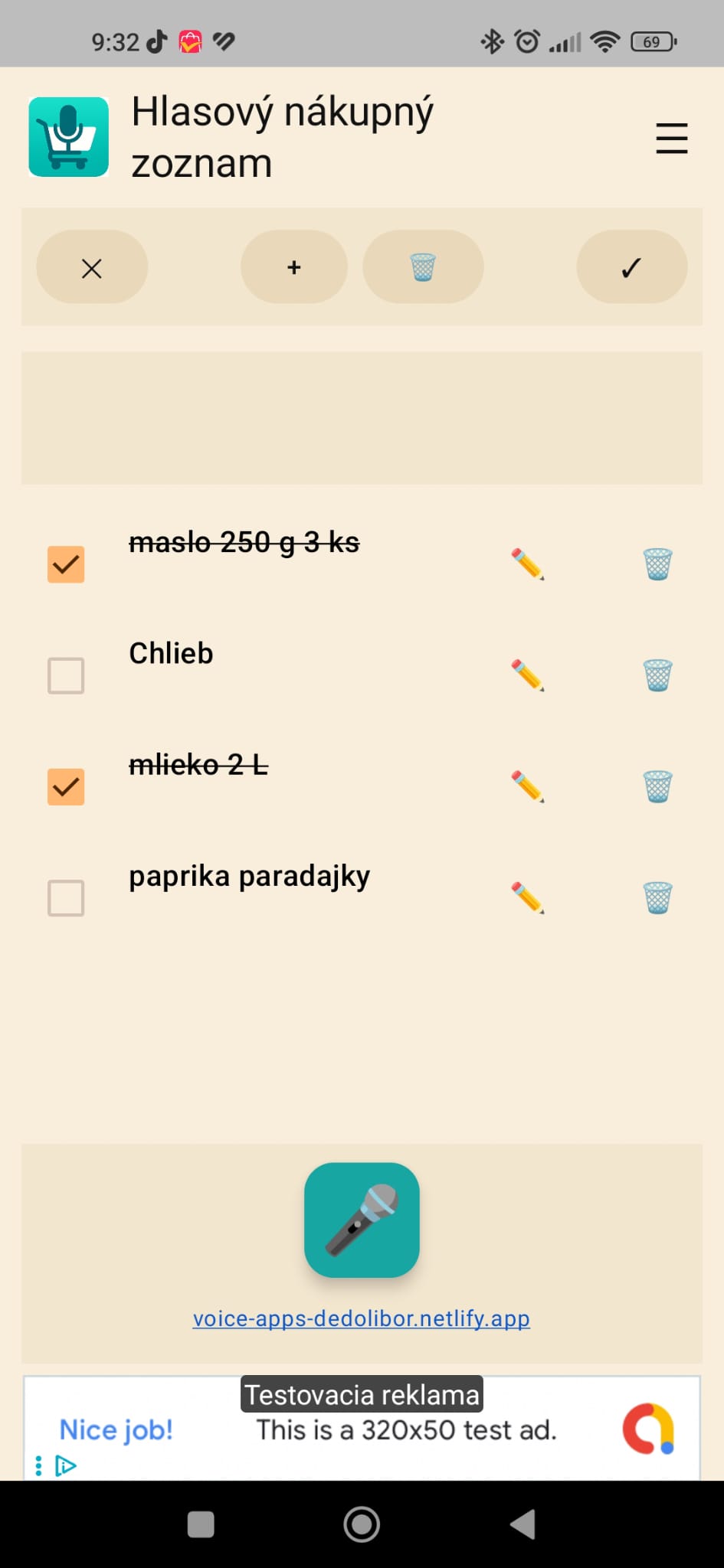
When you buy something, simply check it off – the item will be visually crossed out.

Checked (bought) items
Put image here: zafajknutie.jpeg
Image 8: Checked items (bought)
Tip: If you later add a “Clear bought items” action, we can add one short step here to make it foolproof.

9) Settings (hamburger): language, privacy, ads, support

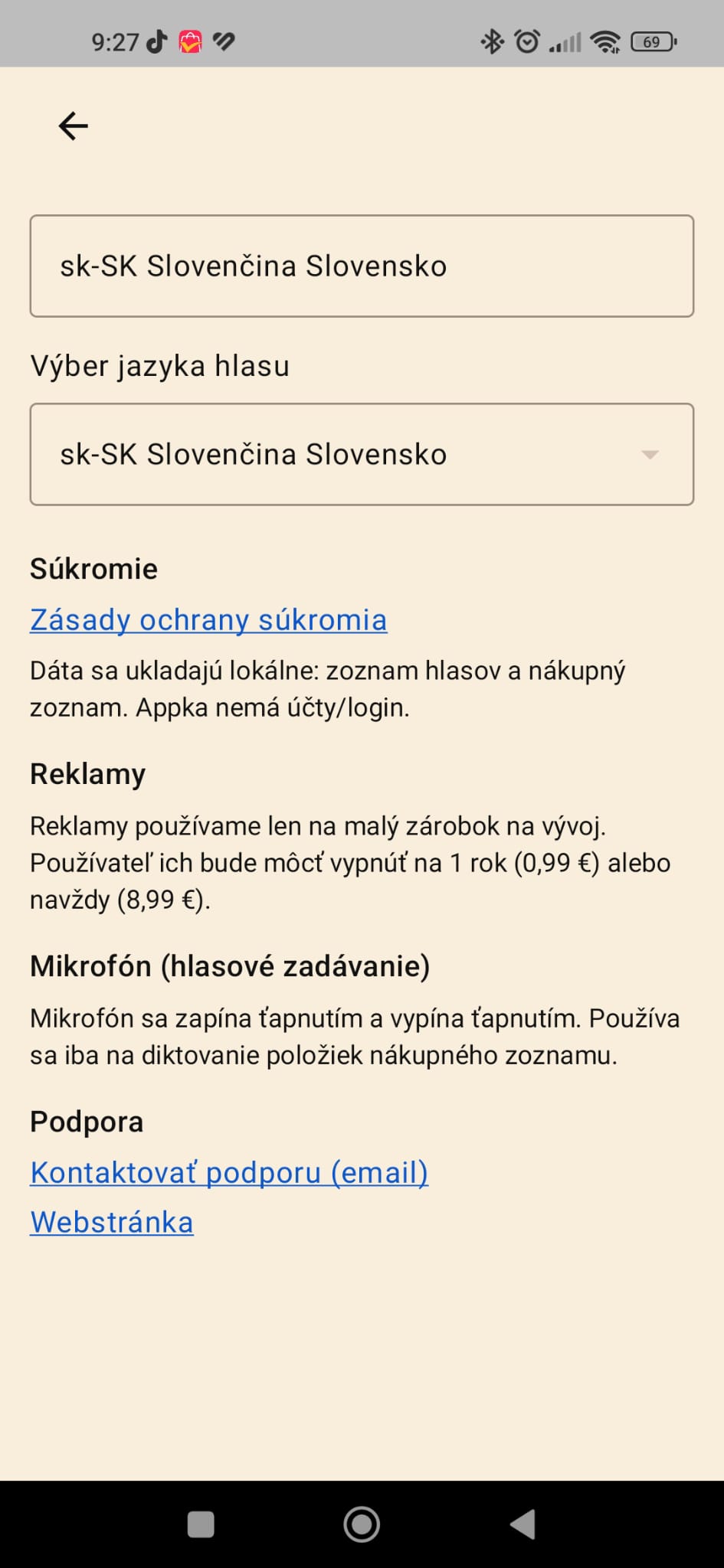
Open Settings using the hamburger menu (three lines in the top-right corner).

  • Voice language – if recognition is wrong, change the language (e.g., en-US / en-GB / sk-SK / cs-CZ…).
  • Privacy – information about local storage and no accounts/login.
  • Ads – info about supporting development and disabling ads.
  • Support – email contact and website.
VoxList settings screen
Put image here: hamburger.jpeg
Image 9: Settings (hamburger)

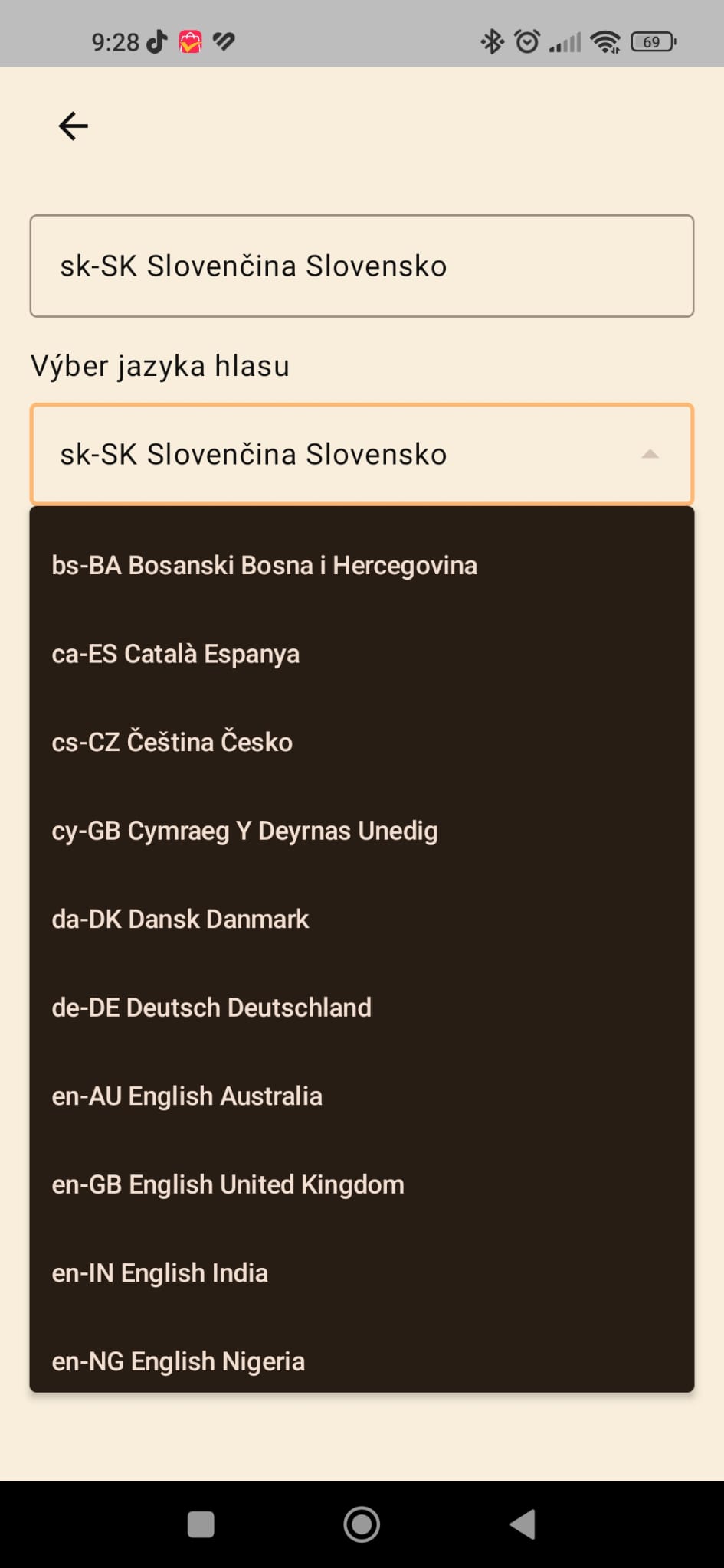
Changing the voice language

Open the language list and choose the language you speak when dictating.

Voice language list (scroll)
Put image here: rolovanie-jazykov.jpeg
Image 9B: Language list (scroll)
Tip: For English dictation, try en-US or en-GB. For Slovak, use sk-SK. For Czech, use cs-CZ.

10) Common problems

  • Microphone doesn’t work: check microphone permission (section 3) and reduce background noise.
  • Recognition is inaccurate: change voice language in Settings (section 9) and speak more clearly.
  • Store is noisy: use manual input (+) or pick the correct candidate (section 5).
  • I don’t want ads: Settings contains information about ad options (section 9).
If you tell me the exact behavior of the top 🗑️ button (delete all vs delete checked), I can replace the generic text with one clear sentence so users never get confused.
© dedo Libor – VoxList • Guide (EN)