
Guide • Ebook Voice Reader
User Guide – Ebook Voice Reader (EVR)
Detailed English guide for Ebook Voice Reader: books and documents, pasted text, web articles, translation, playback, TTS voices, text fixes and background playback.
Ebook Voice Reader User Guide
Ebook Voice Reader helps you listen to books, documents, your own text and web articles instead of reading them on screen.
The app opens a text file or an e-book, prepares it into readable paragraphs and reads it aloud using the TTS voices available on your phone or tablet.
Supported input formats: TXT, Markdown, HTML/XHTML, EPUB, PDF, DOC/DOCX, ODT, RTF, FB2, MOBI/AZW/AZW3/KF8, PDB, PRC and EVR. An EVR file is created by saving a prepared book.
Important: PDF files must contain a text layer. Scanned PDFs without OCR text cannot be read by the app. MOBI, PDB and PRC files must be unencrypted and without DRM protection.
The basic version of Ebook Voice Reader is free and may show an occasional ad after a completed reading or listening session, no more than once in 24 hours. A one-time EVR PRO purchase removes ads; Google Play displays the current price.
Three ways to start listening
Import a book or document
Tap Import book and choose a supported file from your phone. The app prepares the text, divides it into paragraphs and stores it in the local library.
Paste your own text
On the main screen, choose Paste text, paste or type the text and add a title if needed. The Listen now button appears after text has been entered. The text is prepared as a new item and opened in the player.
Listen to a web article
Open an article in your web browser, use the Android Share action and select Ebook Voice Reader from the app list. EVR loads the page directly from its address and tries to separate the main article from navigation and other page elements.
An internet connection is required to load the article. Some websites may block access or use a layout from which the article cannot be extracted reliably.
Translate foreign-language text
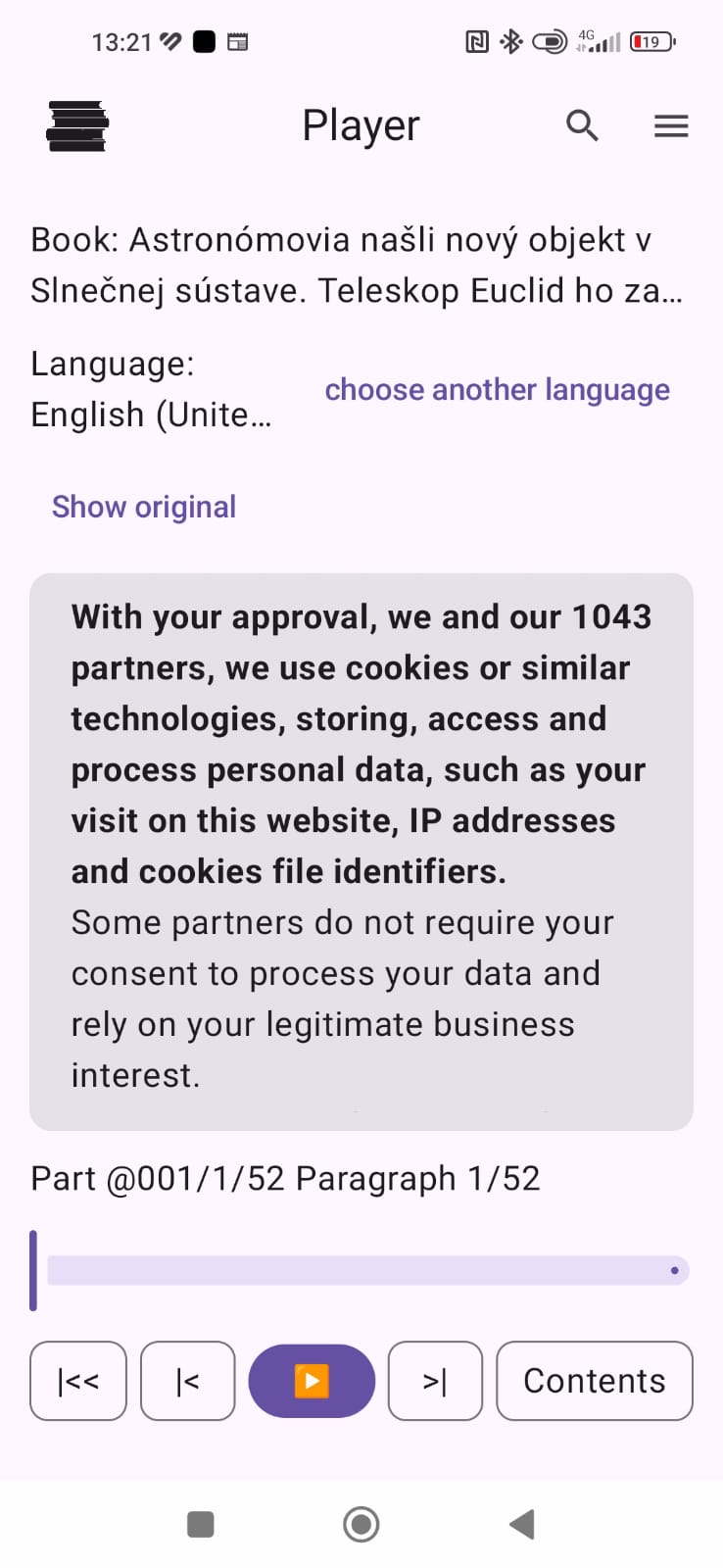
If EVR detects that a loaded article or pasted text is in a different language from the phone language, it can offer a translation. A Google ML Kit language model may need to be downloaded on first use; the translation itself then runs on the device.
After translation, you can switch between the original and translated text and have the selected version read aloud by TTS. Translation is available for texts of up to 25,000 characters. Machine translation may not be perfect, so check the meaning of important text.
Quick picture guide
Here is a quick overview of the most important parts of the app. A more detailed explanation is available below in the full guide.
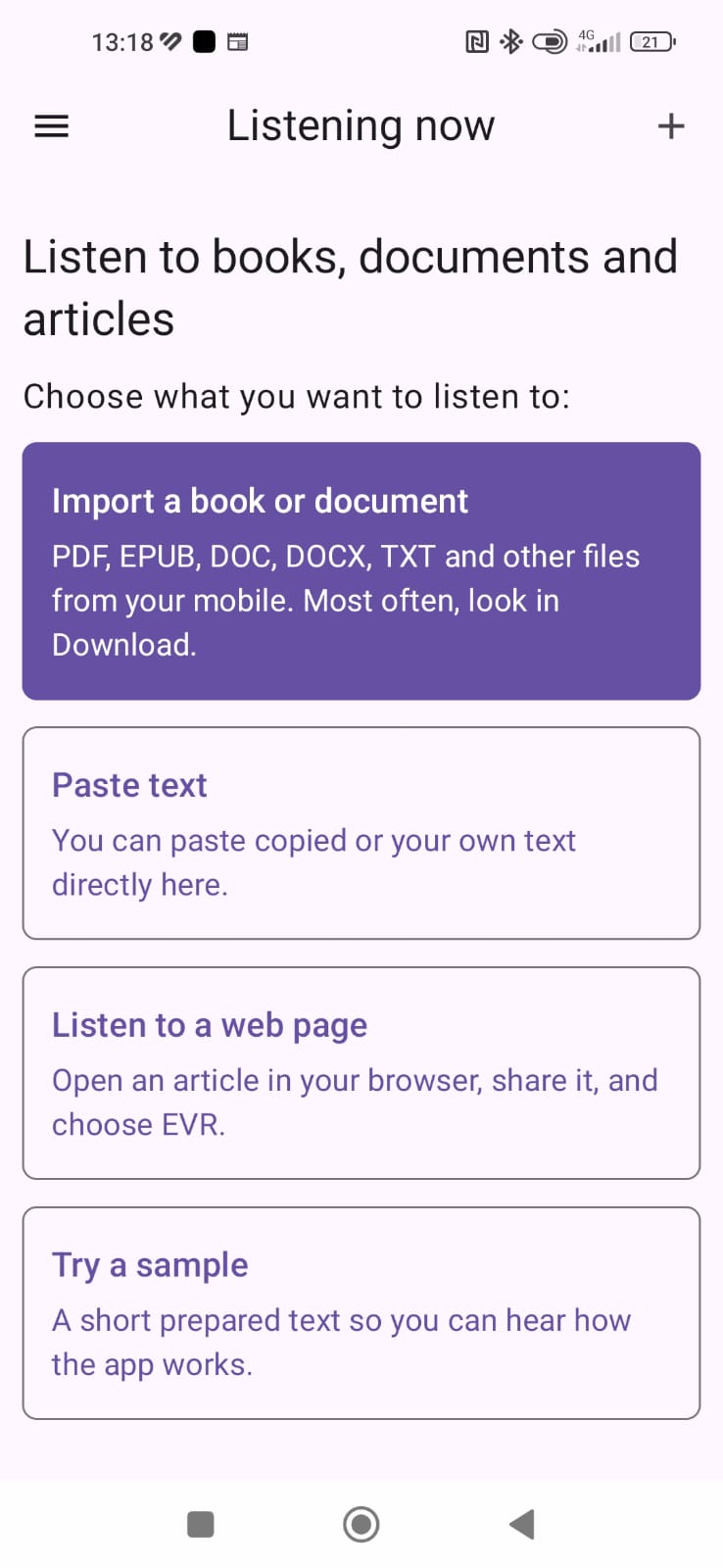
1. Main screen – Listening now
The main screen shows saved books, reading progress and the Import book, Paste text, Listen to a web page and Try a sample options.
2. Preparing a book
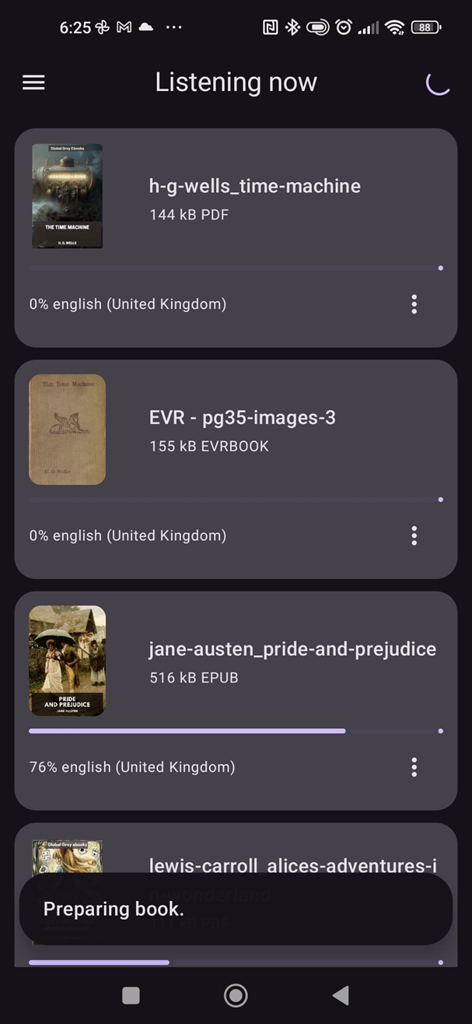
After choosing a file, the app prepares the book for reading. For larger books, you may see the Preparing book message.
3. Book player
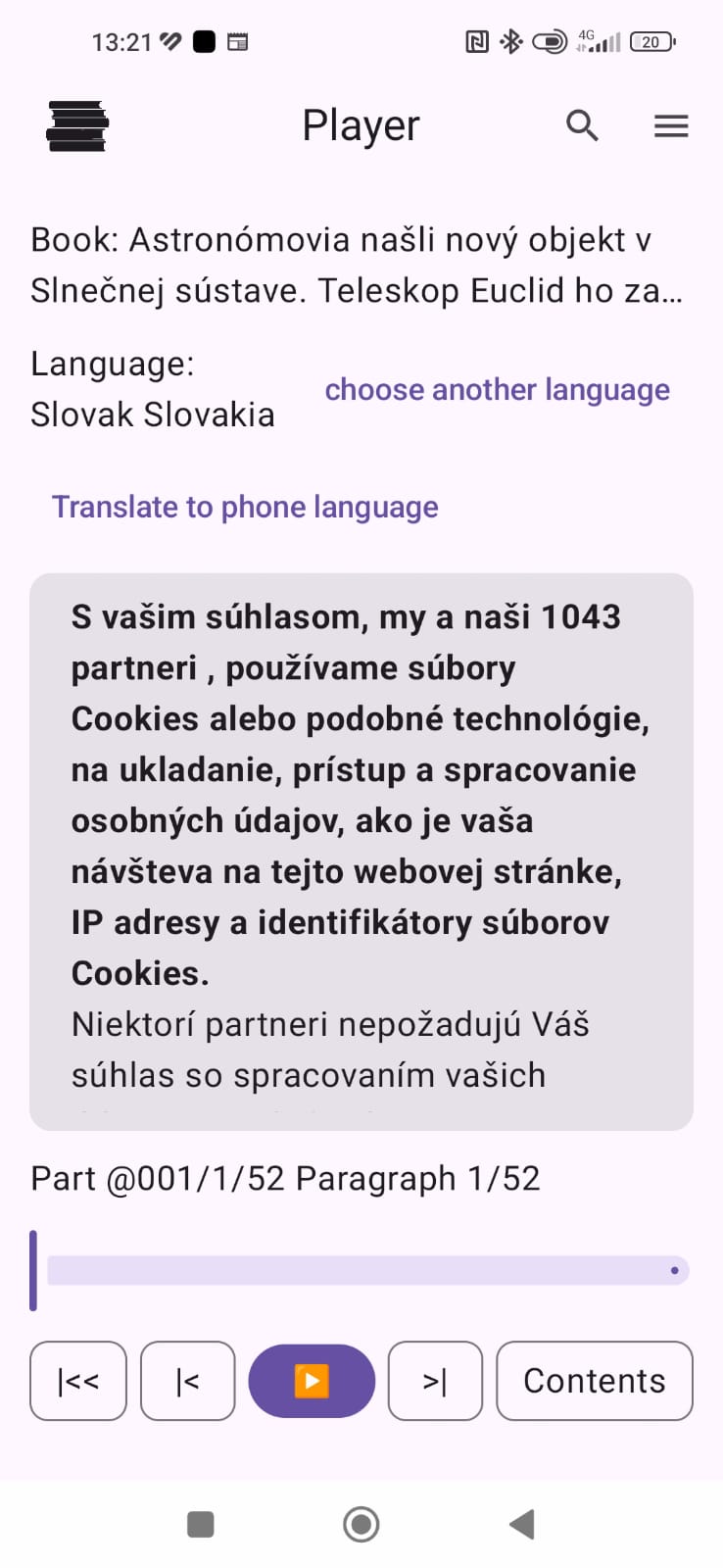
The player shows the current text, book language, highlighted paragraph, progress slider and playback controls.
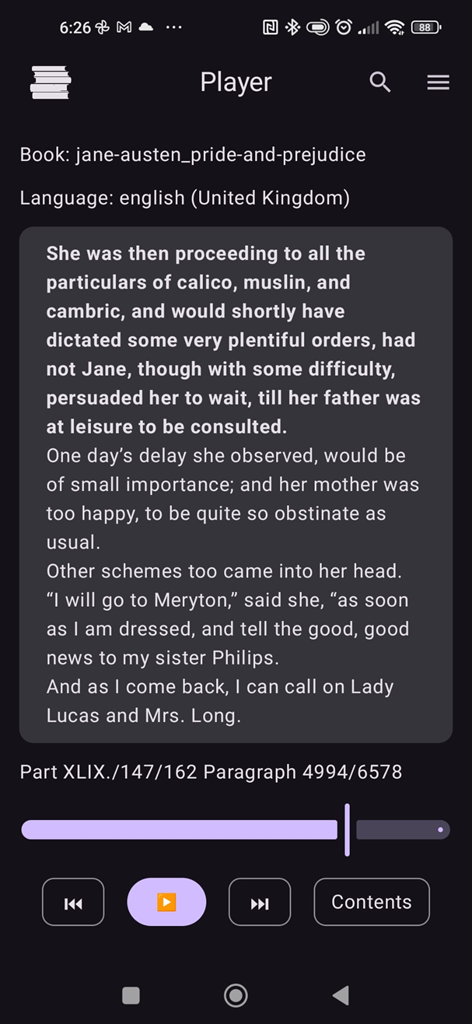
4. Player settings
Player settings include voice selection, book text fixes, pronunciation fixes, world voices and app information.
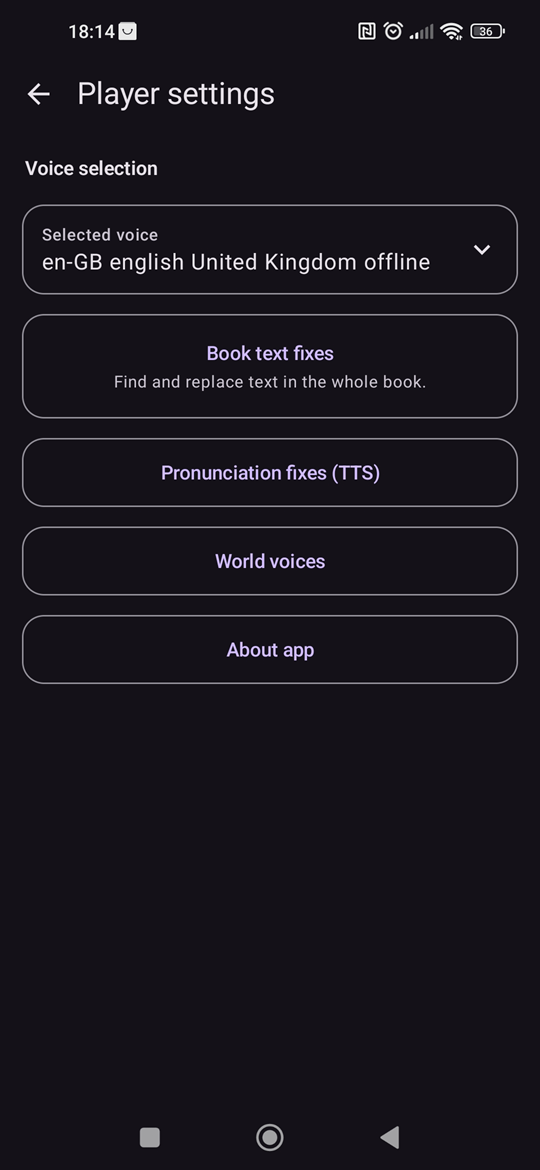
5. Voice selection
You can choose a suitable TTS voice for each book and save it for that book.
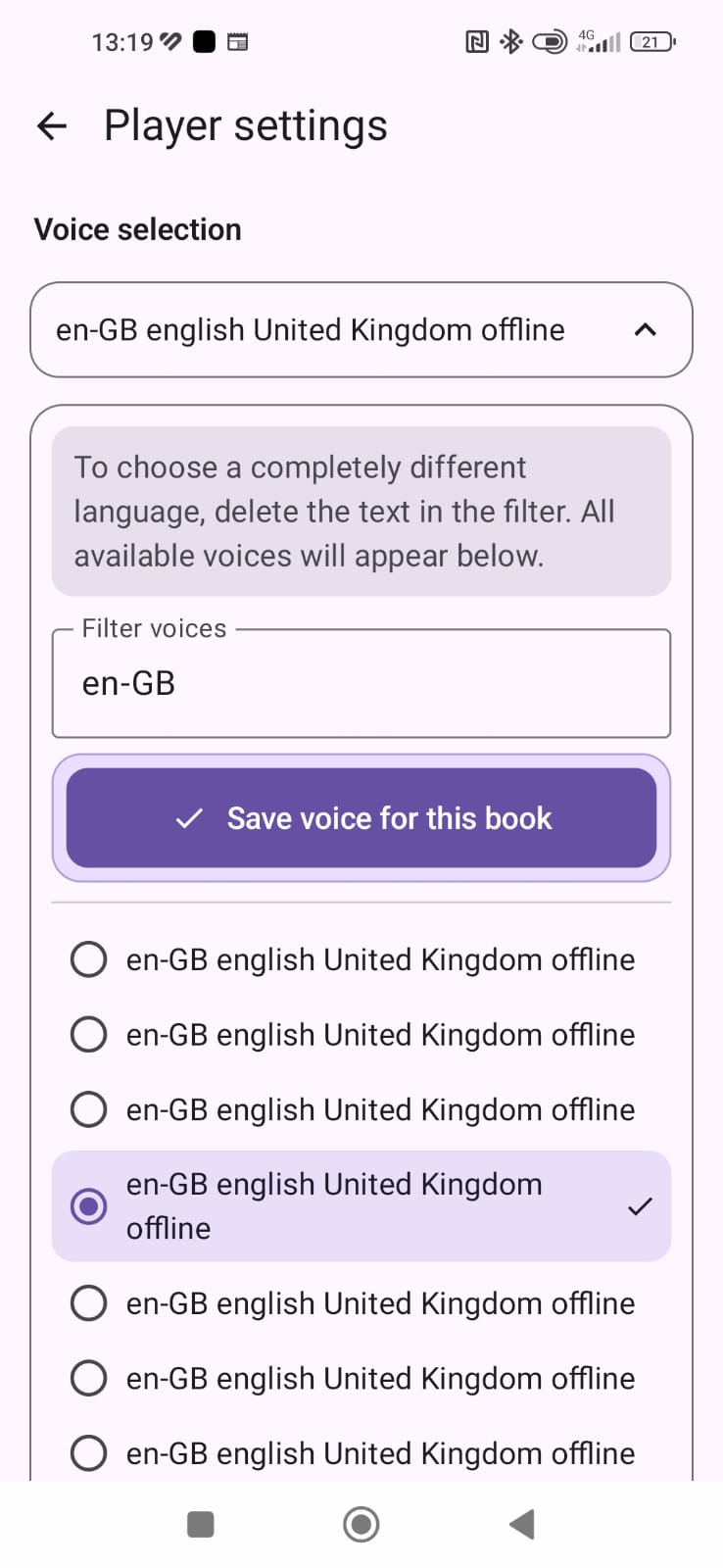
6. Book text fixes
Book text fixes change the prepared book text and prepare the book for reading again.
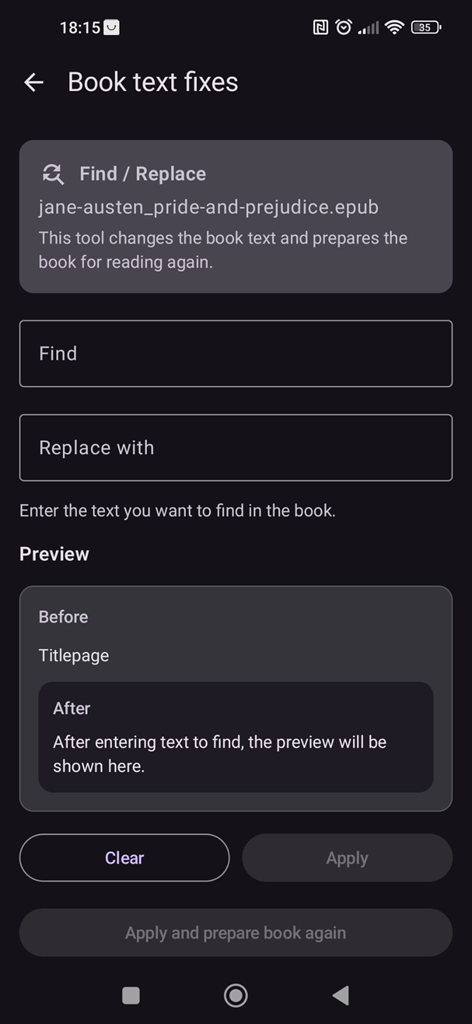
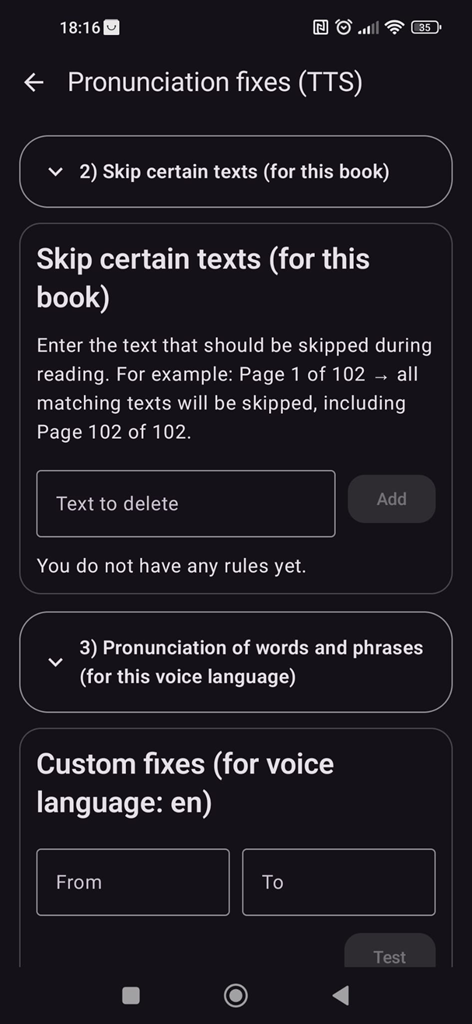
7. Pronunciation fixes (TTS)
Pronunciation fixes do not change the book. They only adjust text before it is sent to the TTS voice.
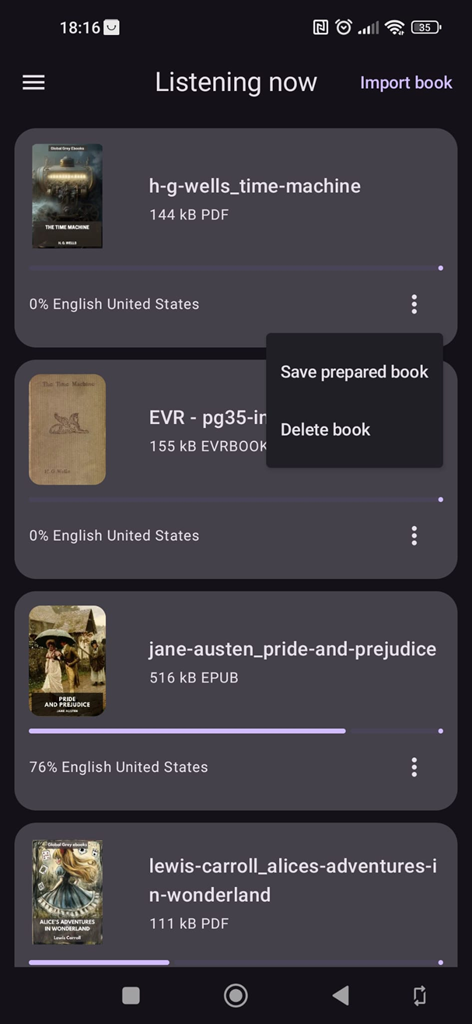
8. Book menu in the list
The three-dot menu lets you save the prepared book as an EVR file or delete the book from the app.
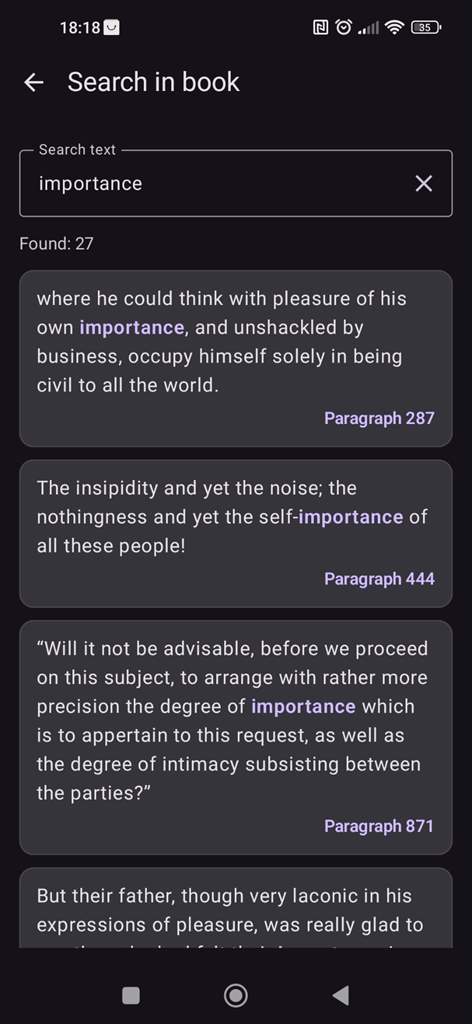
9. Search in book
Search helps you quickly find a word or phrase in the currently opened book.
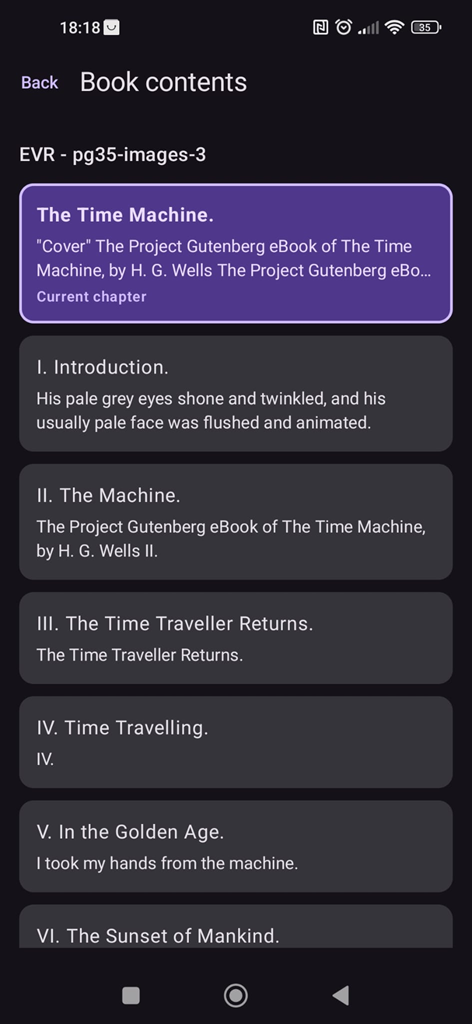
10. Book contents
Book contents lets you jump to another part of the book.
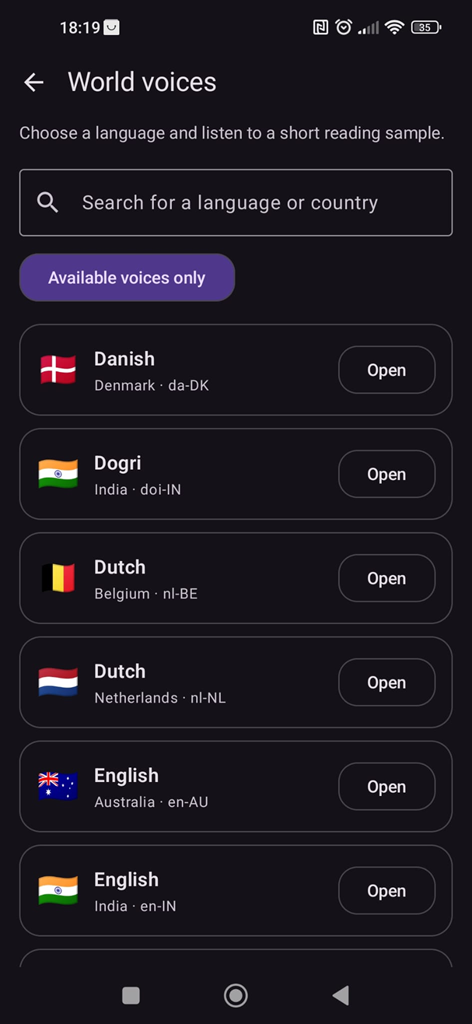
11. World voices
World voices lets you quickly try languages and voices available on your device.
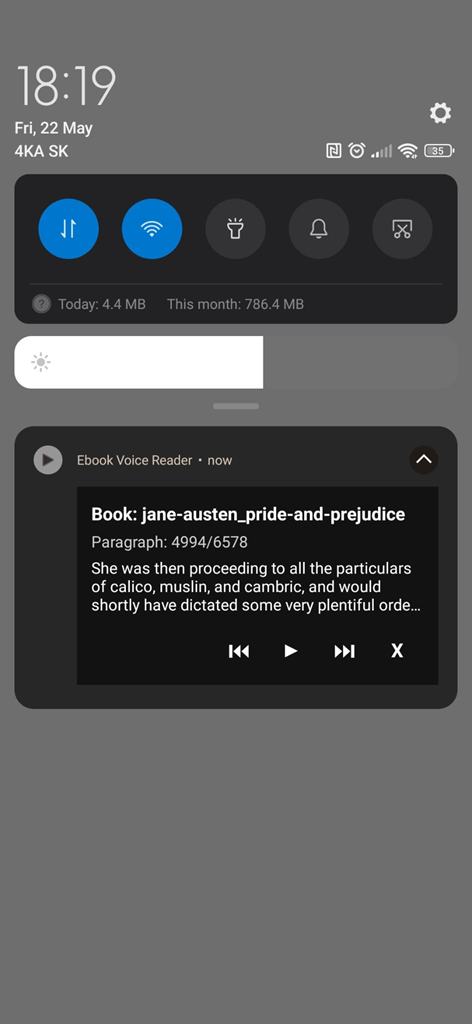
12. Background playback
Ebook Voice Reader can continue reading with the screen off or outside the app. You can control playback from the notification.
Main screen – Listening now
When the app starts, it opens the Listening now screen. This is where you see the books already saved in the app.
Each book may show its title, cover preview or text preview, file size, file type, detected book language, reading progress, progress slider, an open button and a three-dot menu with more options.
If you do not have any books saved yet, tap Import book in the top right corner and choose a file from your phone. The app will prepare the book for reading. During preparation, the text Preparing book… may be shown. Larger books may take a while.
When the book is ready, it appears in the list and opens in the player.
Book menu in the list
Each saved book has a three-dot menu. It contains the options Save prepared book and Delete book.
Save prepared book stores an exact copy of the book as it is prepared in the player. It creates an EVR file that can be imported later, so the book opens in the same state as before saving.
Delete book removes the book from the app’s local library. After deleting, an Undo option is shown briefly in case you change your mind.
Importing a book
During import, the app reads text from the selected file, prepares clean book text when needed, splits it into reading paragraphs and saves the book to the local library on your device.
For each book, the app also saves technical information needed for reading, such as the number of paragraphs, book parts, book language, selected voice, speech rate, voice pitch, pronunciation fixes and book search history.
The book content stays stored locally on your device. The app does not send book text to the developer’s servers.
If you use an online TTS voice, the text being read aloud may be processed by the TTS service provider configured on your device.
Book player
In the player you can see the book title, book language, current part text, current reading paragraph, playback controls, a slider for moving through the book, the Contents button, the search button and the menu button.
The app uses its own reading paragraphs. Usually one paragraph is one sentence or a shorter piece of text. Long sentences or long text blocks may be split into smaller parts.
The currently read paragraph is highlighted in bold and the list scrolls automatically so that you can see what is being read.
If the app has only estimated the book language or is not sure about the correct voice, it may show an option to choose another voice next to the language. Tapping it opens player settings, where you can manually choose the correct voice or language.
When you manually save a voice for the book, the manually saved voice has priority over the automatic language estimate. The app then shows the language of the saved voice, for example bodo (India).
Part and paragraph information
At the bottom of the player you may see something like: Part @000/5/70 Paragraph 5/3734.
@000 is the current book part, 5/70 is the current paragraph inside that part, and Paragraph 5/3734 is the current paragraph in the whole book.
Parts marked @000, @001, @002 and so on are automatically created from paragraphs. They do not always match the original book chapters.
Playback controls
The ▶️ button starts reading. The ⏸ button pauses reading.
A short tap on ⏮ moves one paragraph back. A short tap on ⏭ moves one paragraph forward.
A long press on ⏮ moves to the beginning of the previous part. A long press on ⏭ moves to the beginning of the next part.
You can use the slider to move quickly to another place in the book. If the book is currently playing, reading pauses while you move the slider and continues from the new place when you release it.
Tapping any paragraph moves the player to that paragraph. If the book is already playing, reading continues from the selected paragraph.
Long-pressing a paragraph opens a separate Paragraph text window where you can select and copy the text comfortably.
Book contents
The Contents button opens the Book contents screen.
The contents screen shows automatically created book parts. Each part has a name such as @000 and a short text preview.
The current part is highlighted. Tapping a part moves the player to the beginning of that part.
Playback stops when you open the contents screen, so you can choose where to continue calmly.
Search in book
The player has a search button at the top. Tap the magnifying glass to open the Search in book screen.
Enter a word or phrase into the Search text field and start searching from the keyboard.
The app searches in the currently opened book. Results are shown as a list of paragraphs, with text and paragraph number. The matching word or phrase is highlighted in the result.
Tapping a result moves the player directly to that paragraph.
The app remembers search history for the current book, so you can quickly return to previous searches. Playback stops when you open search.
Player settings
Tap the ☰ menu button in the top right corner of the player to open Player settings.
Here you can find: TTS reading demo, World voices, App language, Voice selection, Voice settings, Speech rate, Voice pitch, Save voice for this book, Book text fixes, Pronunciation fixes (TTS) and About the app.
TTS reading demo
The TTS reading demo button opens a short demo text in the player. It is useful for quickly testing reading without importing your own book.
World voices
World voices opens a list of languages. You can search for a language or country and open a short reading demo in that language.
Each language shows a flag, language name, country or language code and an Open button.
The screen also includes the Only available voices option. When enabled, the list shows only languages for which the device has an available TTS voice.
Voice availability depends on which TTS voices are installed or available on your device.
App language
Player settings show the current app language. This is an information item. The app uses the language set by the device or the Android per-app language setting.
Voice selection
Tap Voice selection in settings. The app loads the TTS voices available on your phone.
Voices can be filtered by name, language or language code. A voice may also show whether it is offline or online.
Tapping a different voice automatically plays a short sample. After a successful sample, the Save voice for this book button appears. If the voice cannot be played, the app shows an error message and does not show the save button.
This saves the voice, speech rate and voice pitch for that book. A manually saved voice has priority over the automatic book language estimate.
If the app finds that Google is not the preferred TTS engine, it may offer to open Android settings. Select Text-to-speech → Preferred engine → Speech Recognition and Synthesis from Google, then restart the phone. The change may not take effect without a restart. Not now dismisses the notice; if a later voice preview fails, EVR checks the TTS setup again.
Speech rate and voice pitch
In Voice settings you can adjust speech rate and voice pitch.
Speech rate controls whether the voice reads slower or faster. Voice pitch controls whether the voice sounds lower or higher.
Use the − and + buttons to change the values. To hear the result, open Voice selection and tap the voice you want to preview.
If the book is currently playing, changes to voice, rate or pitch may be applied directly during reading.
Book text fixes
Book text fixes are used to edit the actual text of the saved book. Use this when the imported book contains an import error, an incorrectly recognised word, broken characters or repeated text that you want to fix directly in the prepared book.
On the fixes screen, enter the text you want to find and the text that should replace it. The app shows the number of found occurrences. After you confirm the change, the book is prepared again for reading and split into reading paragraphs.
Book text fixes change the prepared text of the current book. They are useful, for example, when the same wrong name, broken character or distracting PDF text appears repeatedly in the book.
Pronunciation fixes
Pronunciation fixes (TTS) are used to adjust text right before it is sent to the TTS voice. Pronunciation fixes do not change the saved book text.
Character fixes for this book are useful when you want to fix characters only for TTS reading. If you want to change the actual prepared book text, use Book text fixes instead.
Skip certain texts is useful when you do not want the app to read repeated text, such as page numbers, headers or footers from a PDF. If a rule contains a number, the app treats it as a variable number. This fix is mainly used for TTS reading and may not change the saved book text.
Words and phrases pronunciation is useful when a TTS voice reads a word incorrectly. Enter the original word or phrase into From and the text that should be read instead into To. First tap Test to hear the fix. The Add option appears after testing.
Word and phrase fixes are linked to the voice language, not just one book. You can also prepare an email to the developer with a suggested fix.
The difference is simple: Book text fixes edit the prepared text of the current book. Pronunciation fixes adjust only what is sent to the TTS voice to be read aloud.
Background playback
The app can continue reading when the screen is off or when you leave the app.
During playback, a notification is shown with the book title, current paragraph, a short text preview and buttons for back, play/pause, forward and X to stop playback.
Tapping the notification returns you to the app. On newer Android versions, the app may ask for notification permission.
The app uses audio focus. During a phone call or temporary audio loss, reading may pause and then continue when audio returns.
About the app
The player menu includes About the app. It shows information about the app, website, privacy policy, developer contact and app version.
The basic version of Ebook Voice Reader is free and may show occasional ads. A one-time EVR PRO purchase removes ads. This screen also lets users restore a purchase and, when required in their region, open ad privacy options.
The About the app section also explains that book content, reading positions, voice settings, pronunciation fixes and book search history are stored only locally on the device.
Useful tips
If a voice sounds strange, open player settings and choose another voice.
If a book is being read in the wrong language, manually select a voice in the correct language and save it for that book.
If a PDF contains page numbers or repeated headers, use Skip certain texts.
If a word is read incorrectly, use Words and phrases pronunciation.
If the text contains broken characters or a repeated error in the imported text, use Book text fixes. If you only want to change how the voice reads the text, use Pronunciation fixes.
If you want to find a specific place in a book, use the magnifying glass and the Search in book screen.
To continue later, simply open the book again from the Listening now list. The app remembers the last position.
Simple workflow
1. Choose Import book, Paste text, or share an article from your browser to EVR.
2. Choose a file, paste text, or wait for the web article to load.
3. Wait while the book is prepared.
4. Open the book from the Listening now list.
5. Tap ▶️ and listen.
6. Use the ☰ menu to set voice, speech rate, pitch, book text fixes and pronunciation fixes.
Ebook Voice Reader is made for comfortable listening to books, documents and your own texts. Choose a file, start reading and let the app read it aloud for you.